

Terminal UI
rivet tui puts working-tree drift, snapshot history, per-file diffs and the
restore plan on one screen, so reviewing a restore no longer means running
three commands and scrolling back.
It is a front end, not a second implementation. Every level calls the same functions the equivalent subcommand calls, and every action it can take has a CLI form. If the two ever disagree, the CLI is right and the TUI has a bug.
rivet tui --repo ~/rivet-snapshots--backend <id> and --profile <name> mean exactly what they mean on
rivet restore.
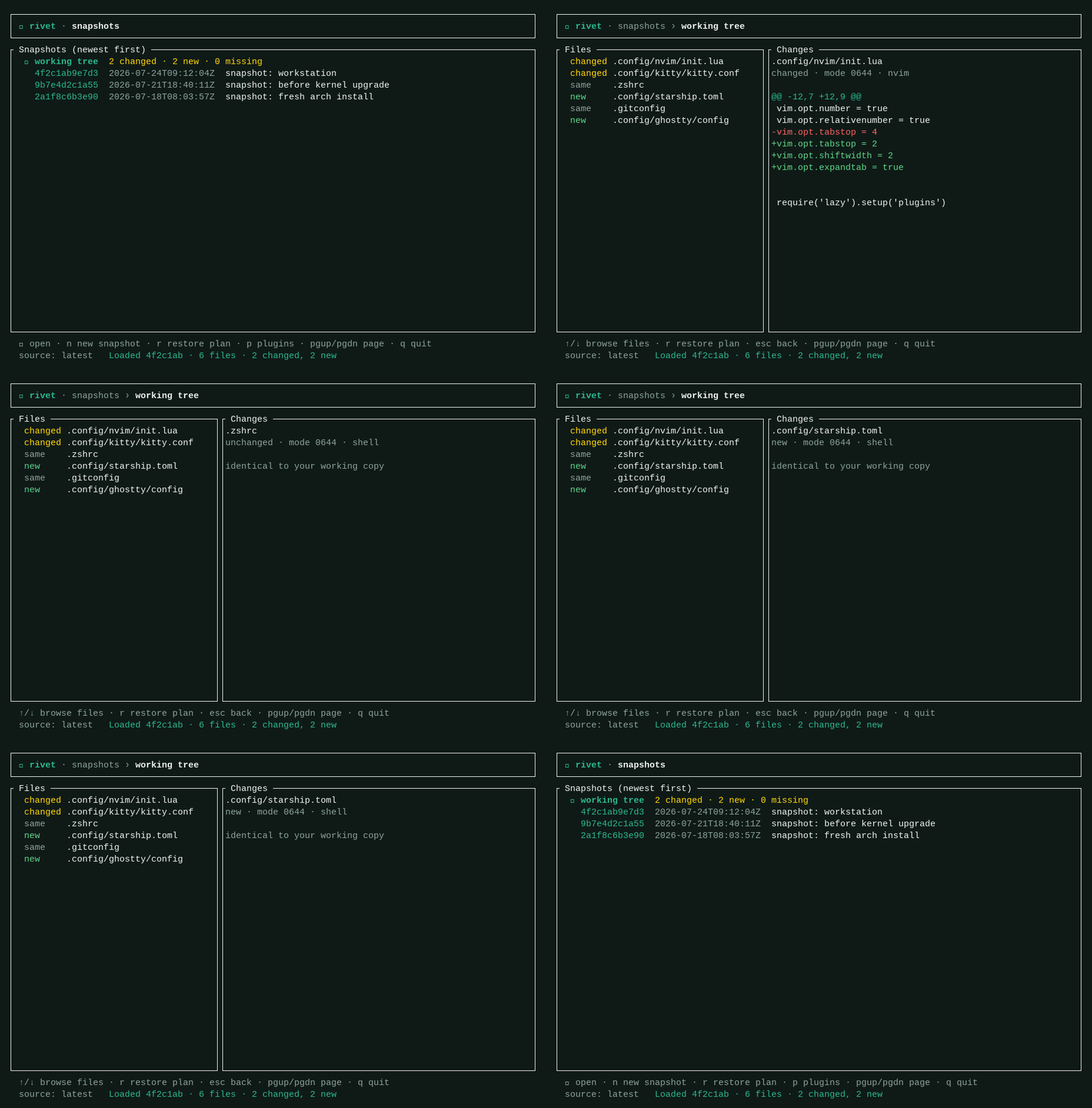
Every image on this page is generated from the real renderer by pressing the keys it describes — see Regenerating these images.
Where you are
Section titled “Where you are”The TUI is a hierarchy, not a set of peer screens. You descend into things and come back out, and the title bar is a breadcrumb reporting where you stand:
◉ rivet · snapshots › a3f9c21 › restore plan| Level | What it shows | CLI equivalent |
|---|---|---|
| Snapshots | The working tree’s drift, then every snapshot, newest first | rivet status, rivet restore --revision … |
| Files | Every file the selected revision touches, with its diff | rivet restore --diff |
| Restore plan | Packages, AppImages, groups, files and secrets to restore | rivet restore --select |
| Plugins | Every plugin in scope, where it came from, and what it may run | rivet plugins --verbose |
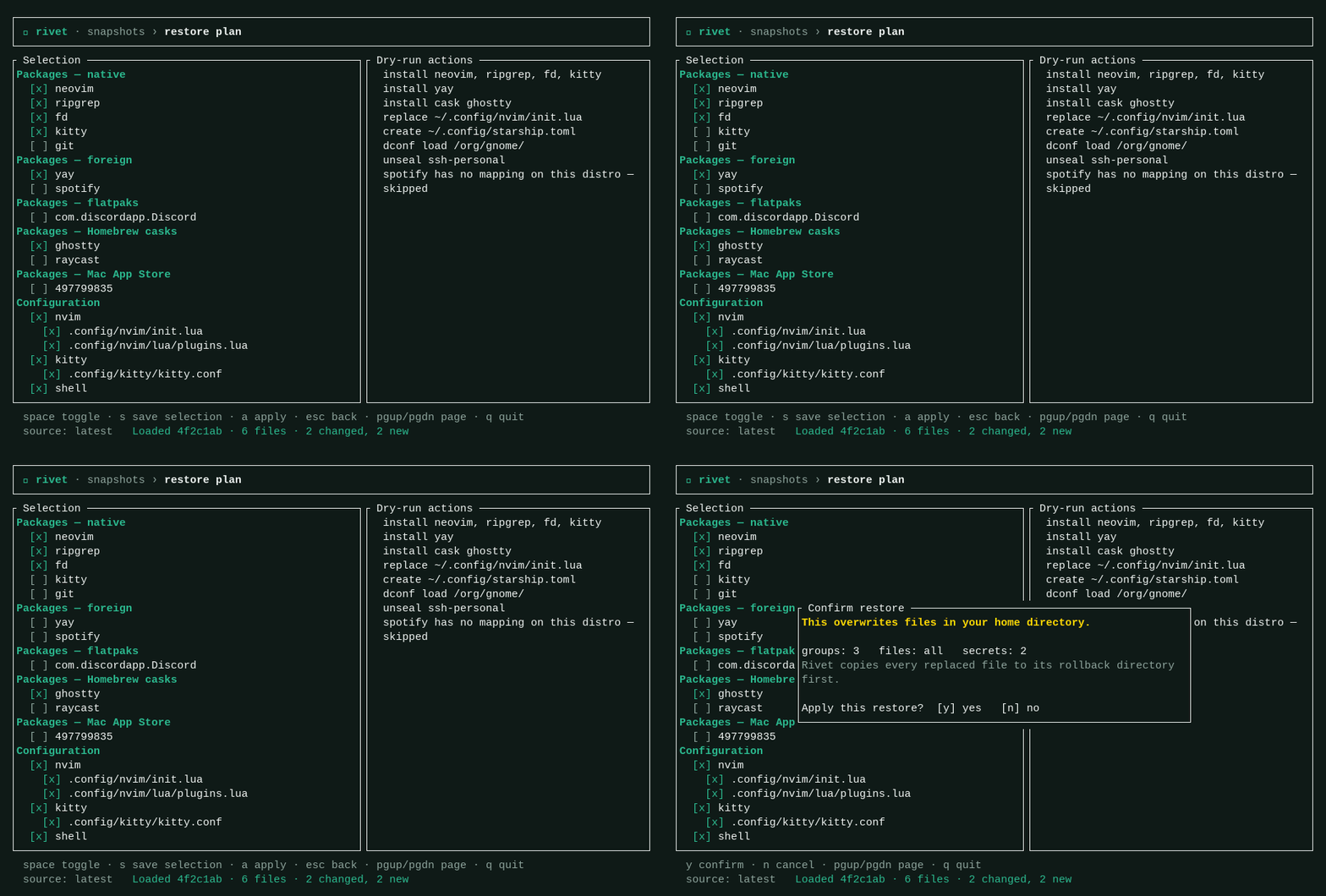
Enter descends, Esc goes back. Coming back up lands on the row you left,
because each level remembers its own cursor. At the root there is nowhere to
go back to, so Esc does nothing there — quitting is always q.
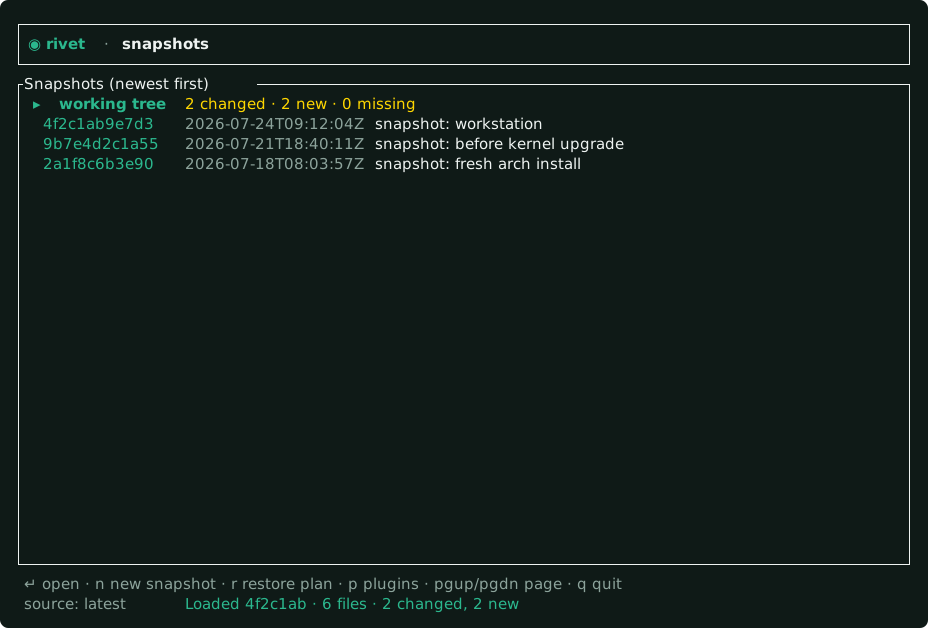
The first row of the root list is the working tree, not a snapshot. It
carries the same counts rivet status prints, and opening it diffs your home
directory against the newest snapshot. Everywhere else in Rivet an omitted
--revision means the working tree; this row is that idea made visible.
Creating a snapshot
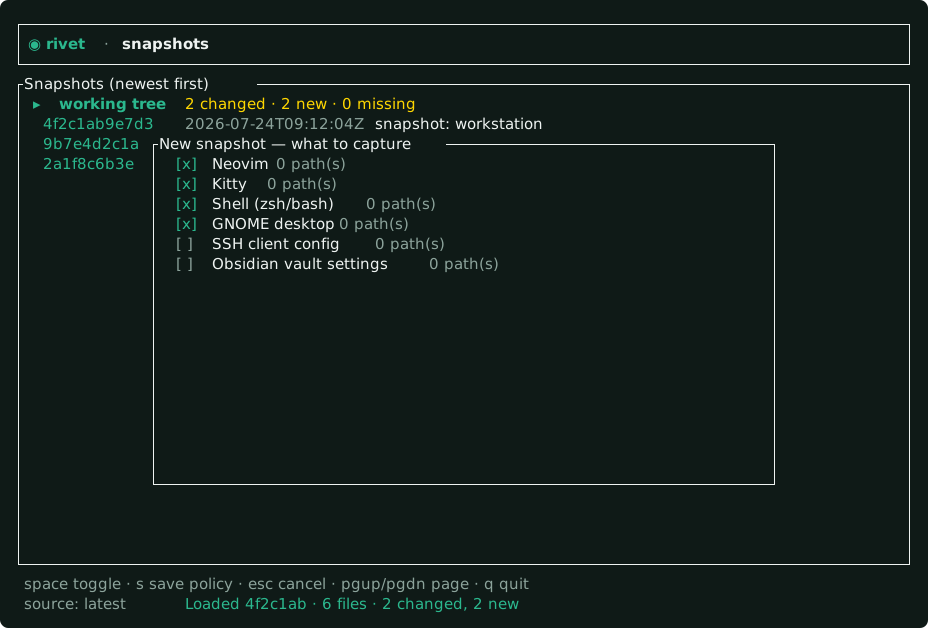
Section titled “Creating a snapshot”n opens the capture checklist over the list. Tick the groups you want and
press s; Esc closes it without saving. It is a modal rather than a level
because creating a snapshot is a one-shot flow, not somewhere you browse.
| Key | Action |
|---|---|
↑ / ↓, k / j |
Move the cursor |
Enter |
Descend — into a snapshot’s files, or the working tree’s drift |
Esc |
Back up one level, or close a modal |
PgUp / PgDn, Home / End |
Page through long lists |
Space |
Toggle the highlighted item |
n |
New snapshot (root level) |
p |
Open the plugin list (root level) |
r |
Open the restore plan (not from the plugin list) |
s |
Save — the capture policy in the checklist modal, the restore selection in the plan |
a |
Apply the restore, behind a confirmation |
q, Ctrl-C |
Quit |
The footer lists only the keys that work where you are standing, so it is a prompt rather than a cheatsheet you have to filter yourself.
Nothing is written until you press s or a. Quitting discards unsaved ticks.
What the file pane shows
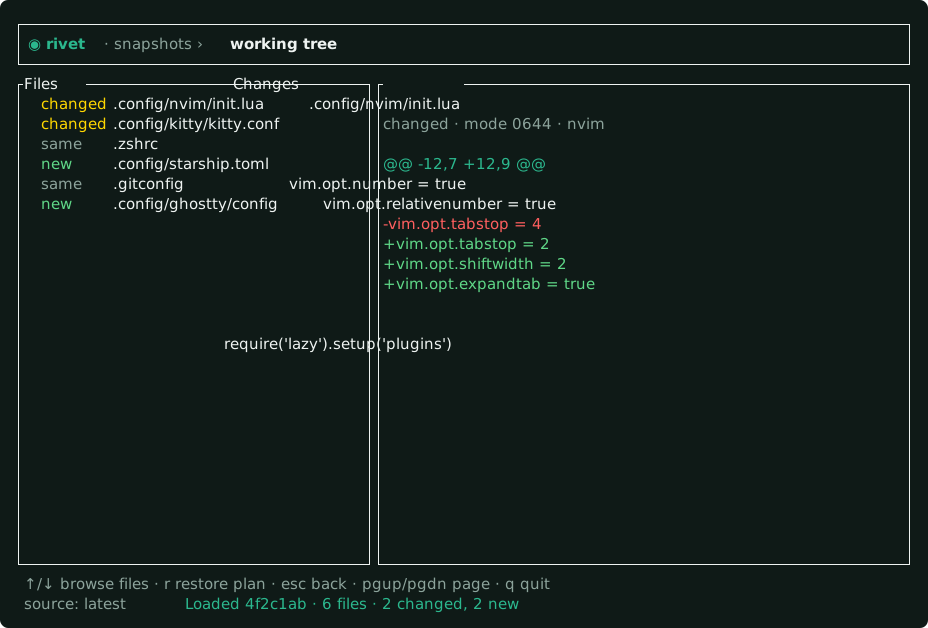
Section titled “What the file pane shows”Selecting a file shows its path, then a metadata line — status, the mode a restore applies, and the plugin that captured it — then the unified diff.
An unchanged file shows the metadata and nothing else. The pane never prints
a file’s contents. Tracked dotfiles routinely hold credentials (.netrc,
.aws/credentials, .git-credentials), and the pane redraws on cursor
movement alone, so rendering contents would put secrets into your scrollback,
screen shares and script logs without you pressing anything. If you want the
bytes, the file is on disk.
What the tick boxes mean
Section titled “What the tick boxes mean”The Restore plan’s boxes map directly onto the saved restore selection, not onto the text of a planned action:
- Unticking a group unticks its files too — a file of an unselected group
can never be restored, so showing it ticked would misstate what
--applywill do. - While every file of every selected group is ticked, the selection records no file-level restriction. That is the pre-v0.7 behaviour, and it means a future snapshot’s new files are included rather than silently dropped. Unticking a single file switches the selection to an explicit file list.
- Packages are individual entries. Which package sources Rivet captures
at all is still a snapshot-side choice —
rivet checklist --select.
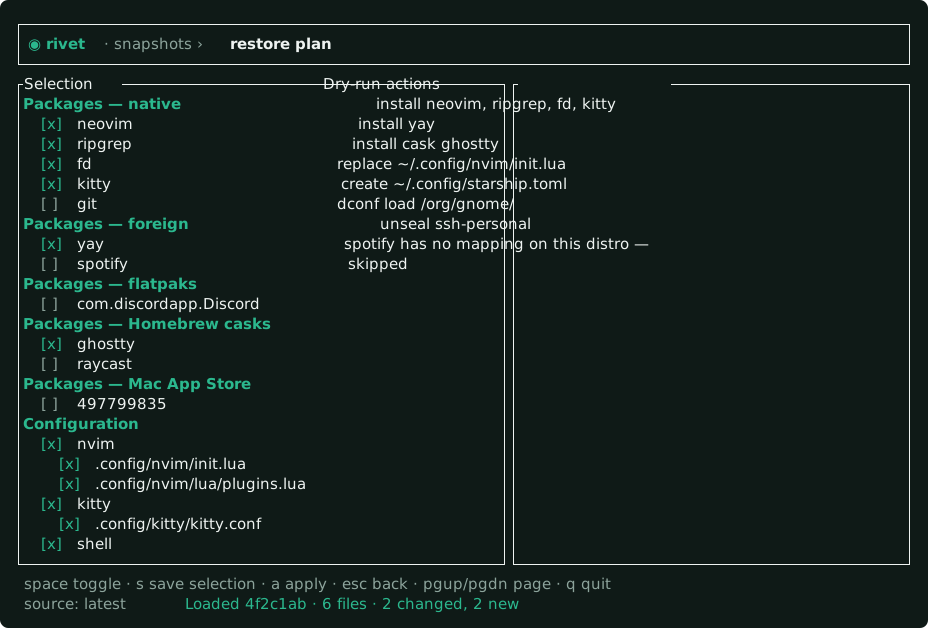
The right-hand pane is the same dry run rivet restore prints, including its
warnings — here, a package with no mapping on the destination distro is
reported as skipped rather than guessed at.
What the plugins level shows
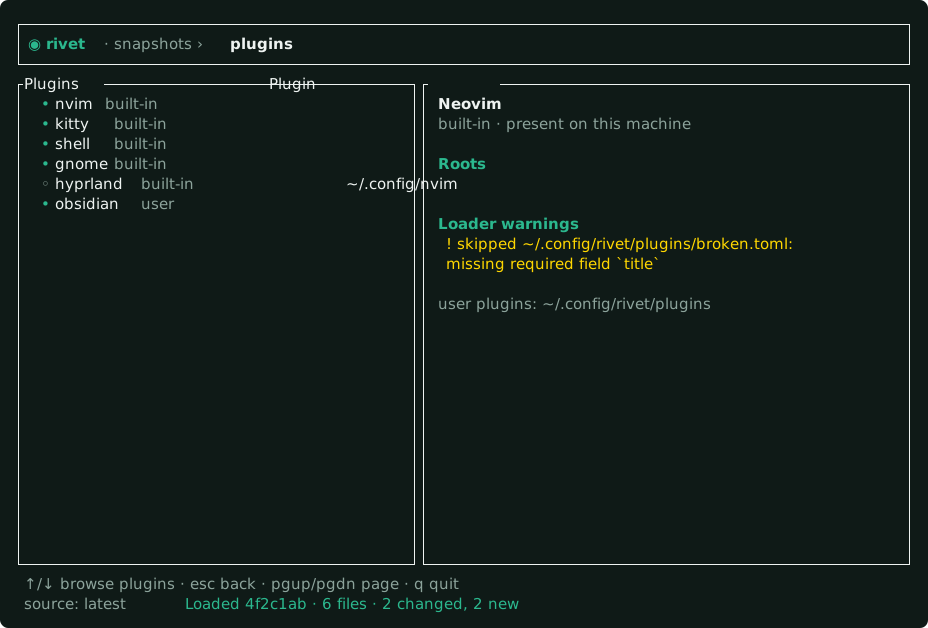
Section titled “What the plugins level shows”p from the root list opens the plugin set this session loaded: every plugin’s
id, whether its roots exist on this machine (• present, ◦ declared only),
and whether it came from Rivet or from a file of yours. The detail pane beside
it lists that plugin’s roots and its hooks verbatim, next to the file they
were declared in.
That is the point of the level. A declarative user plugin can name commands Rivet will execute during a snapshot or a restore, and a summary of a command is not something you can review — so the argv is on screen as written. Rows that are both yours and carry hooks are flagged in the list itself, because that is the combination worth finding without opening every entry.
Two things the list will not silently swallow:
- A plugin file that failed to load is skipped by the loader. Its warning is shown here, which is the only place in the TUI that says why a group you expected is missing.
- An empty list still prints the directory it read
(
~/.config/rivet/plugins), so “no plugins” is actionable rather than a dead end.
The level is read-only. Enabling or disabling a group is a capture-policy
decision and already lives in the n checklist; this level answers where a
group came from and what it may run, and nothing else. For the same reason a
restore plan is not reachable from underneath it — a plugin does not contain a
restore, and the breadcrumb would be claiming otherwise.
Applying a restore
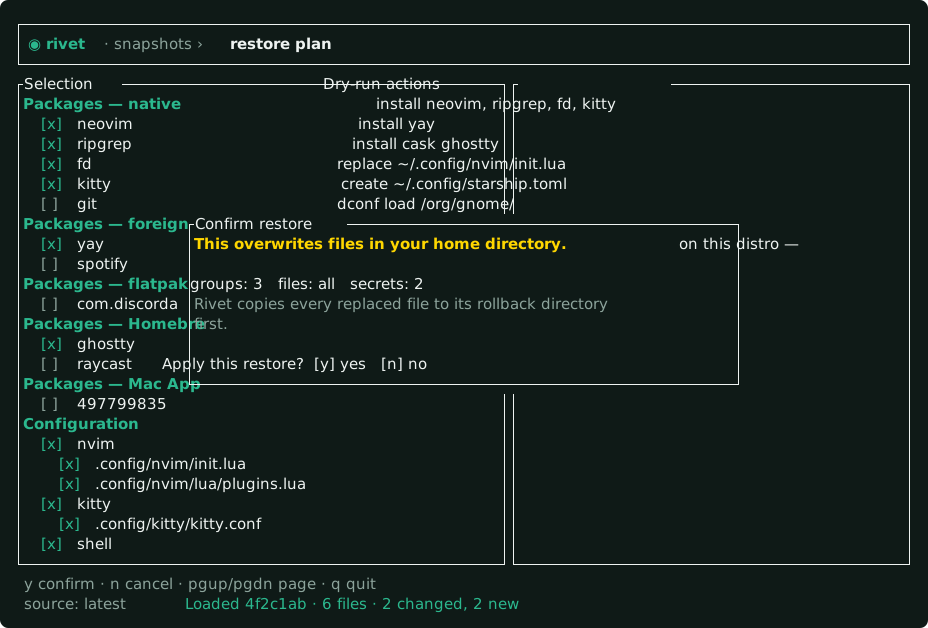
Section titled “Applying a restore”a opens a confirmation showing how many groups, files and secrets are
selected. It is the same guarded path as rivet restore --apply --yes: every
file that gets overwritten is copied under Rivet’s rollback directory first.
While the restore runs, the TUI drops back to the ordinary terminal. Package
managers print progress and may prompt for a sudo password, and under the
alternate screen that prompt would be invisible — the session would just look
frozen. The UI returns once the restore finishes.
Known limitations
Section titled “Known limitations”- Not everything is in the TUI. Managing the vault and adding tracked
paths remain CLI-only (
rivet vault …,rivet track). Snapshot creation is in the TUI as of the checklist modal; the rest are write operations that deserve an explicit command in your shell history. - The plugin list is read-only. It shows where a plugin came from and what
it may run; it cannot enable, disable or install one. Use the
nchecklist to change what gets captured, andrivet pluginsfor the same listing in a shell or as--json. - The dry-run pane reflects the last saved selection. Ticking boxes
updates the selection, but the action list beside it is recomputed by
restore::plan, which reads from disk. Presssto refresh it. - No search or filter yet. A workstation with a thousand packages is navigable only by paging. This is the largest remaining gap.
- The file pane is a flat list, not a tree. Long paths are shown whole rather than nested under their directories.
--jsonis refused. The TUI is interactive by definition; usescan,checklist,auditorrestorefor machine-readable output.
Regenerating these images
Section titled “Regenerating these images”The screenshots and animations are not captured from a terminal by hand. They
are produced by crates/rivet-cli/src/tui/screenshots.rs, which renders the
real render::draw over a real App, and drives the animations by feeding
real key events to App::on_key — the selective-restore clip above unticks
those two packages by sending Space, and reaches the confirmation by sending
a. A caption here cannot drift from what the key actually does, because the
frame proving it is produced by pressing it.
cargo test -p rivetsnap-cli --features tui -- --ignored tui_mediapython3 scripts/render-tui-media.py # Pillow needed only for the GIFsThe first command writes styled-cell JSON into target/tui-frames/; the second
renders assets/tui/. Stills are SVG because they are text — sharp at any zoom
and reviewable as a diff. The animations are GIF because GitHub strips
animation out of SVG in a Markdown file, which is where they are read.
Re-run both after any change to the TUI’s layout or palette. The same generator also runs unignored on every CI build, drawing all six screens at 20×6 and 200×80 as well as the publication size, so a layout that breaks on a small terminal fails there rather than in yours.
Headless builds
Section titled “Headless builds”The terminal UI is a default-on Cargo feature. To build a Rivet with no
ratatui dependency at all:
cargo build --release -p rivetsnap-cli --no-default-featuresThat binary keeps every other command and explains itself if rivet tui is
invoked:
this build has no terminal UI (compiled without the `tui` feature). Every TUIaction has a CLI equivalent: checklist --select, restore --diff, restore --select